 By chloe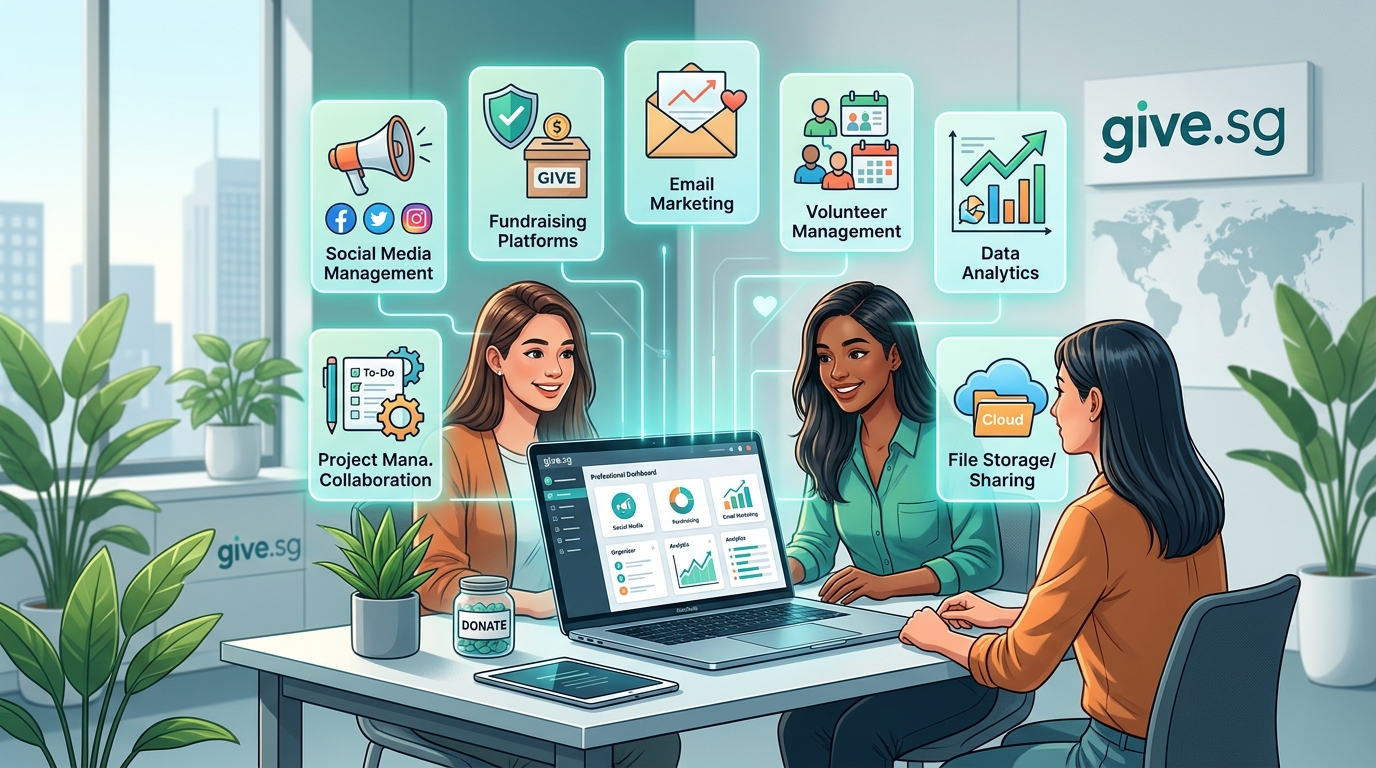
Running a small nonprofit means doing more with less. You’re probably wearing multiple hats right now: fundraiser, marketer, volunteer coordinator, and tech support all rolled into one. The good news? You don’t need a massive budget to run your organization like a pro. Plenty of powerful digital tools won’t cost you a cent, and they’re designed specifically with nonprofits in mind.
Small nonprofits can access professional-grade software at zero cost through specialized nonprofit programs and free tiers. These free tools for nonprofits cover everything from donor management and email marketing to project collaboration and social media scheduling. By strategically combining these solutions, organizations maximize impact without expanding budgets, allowing staff to focus resources directly on mission-critical work instead of expensive software subscriptions.
Why Free Doesn’t Mean Second Rate
Let’s clear up a common misconception right away. Free nonprofit tools aren’t stripped-down versions that barely function. Many companies offer full-featured products to qualifying organizations because they genuinely want to support social good. Others provide generous free tiers that work perfectly for smaller teams.
The trick is knowing which tools deliver real value and which ones will create more headaches than they solve. You need solutions that your team can actually use without a computer science degree.
Google Workspace for Nonprofits
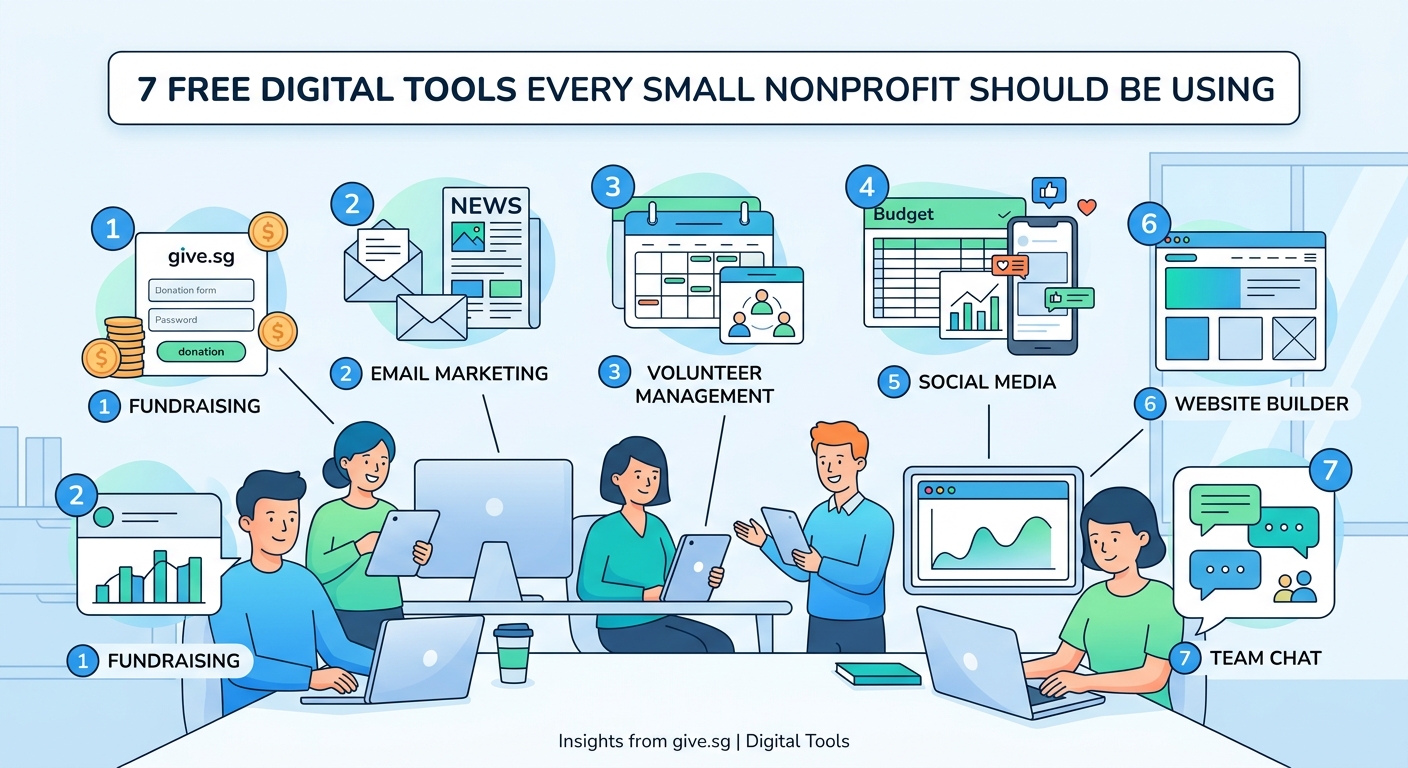
Google hands eligible nonprofits the same tools that power businesses worldwide, completely free. We’re talking professional email addresses with your domain name, shared calendars, video conferencing, and cloud storage.
Here’s what makes this tool essential:
- Professional email builds credibility with donors and partners
- Shared drives keep everyone accessing the same updated documents
- Google Meet handles virtual board meetings without paid Zoom accounts
- Forms create volunteer signups and event registrations in minutes
Setting up takes about 30 minutes. You’ll verify your nonprofit status through TechSoup or your country’s equivalent validation service. Once approved, you get access to Google Workspace with 30GB of storage per user and all the collaboration features your team needs.
The calendar feature alone saves countless hours. Instead of endless email chains trying to schedule meetings, everyone sees availability in real time. Board members can check meeting dates. Volunteers know when they’re needed. Staff coordinate without constant back-and-forth messages.
Canva for Nonprofits
Visual content matters more than ever. Social media posts with images get significantly more engagement than text-only updates. But hiring a graphic designer isn’t realistic for most small nonprofits.
Canva solves this problem beautifully. The nonprofit program gives you access to premium features that normally cost $120 per year. You get:
- Thousands of templates for social posts, flyers, and presentations
- Brand kit storage for logos and color schemes
- Photo library with millions of professional images
- Animation features for eye-catching content
Your volunteer coordinator can create recruitment posters. Your development director can design donation appeals. Your executive director can build presentation slides for funder meetings. All without any design training.
The template system means you’re never starting from a blank canvas. Pick a layout that matches your needs, swap in your photos and text, adjust colors to match your brand, and you’re done. A professional-looking Instagram post takes five minutes instead of five hours.
Mailchimp Free Tier
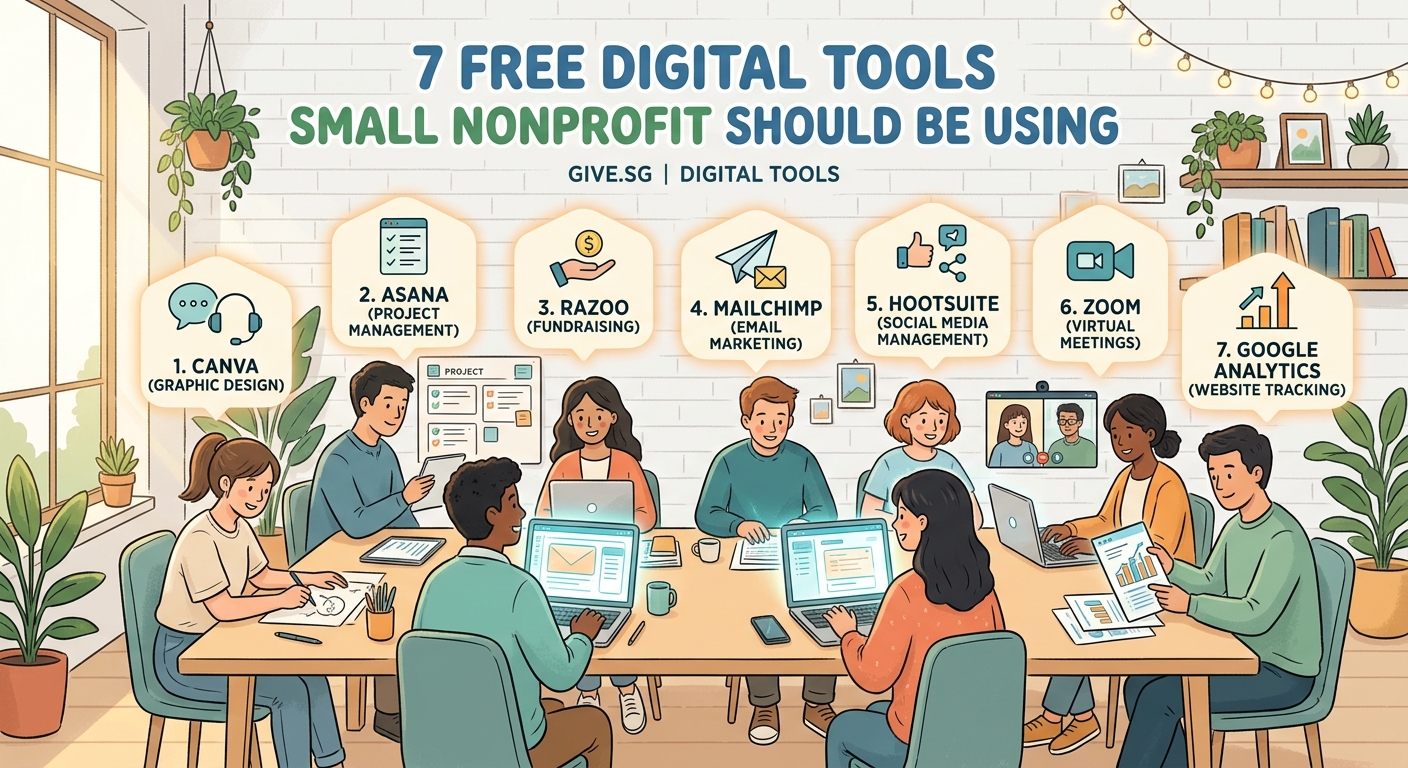
Email remains one of the most effective ways to stay connected with supporters. Mailchimp’s free plan handles up to 500 contacts and 1,000 monthly emails, which works perfectly for growing nonprofits.
The platform includes:
- Drag-and-drop email builder
- Basic automation for welcome sequences
- Signup forms for your website
- Performance tracking and analytics
You can segment your audience to send different messages to donors versus volunteers. You can schedule campaigns to send at optimal times. You can see who opened your emails and which links they clicked.
This data helps you understand what resonates with your community. If donation appeals sent on Tuesday mornings get better response rates than Friday afternoons, you now have that information. If stories about program participants generate more engagement than statistics, you can adjust your content strategy.
Trello for Project Management
Keeping track of all your initiatives gets messy fast. Event planning, fundraising campaigns, volunteer programs, and daily operations all need coordination.
Trello organizes everything visually using boards, lists, and cards. Think of it like sticky notes on a wall, but digital and much more powerful.
Here’s a simple workflow to get started:
- Create a board for each major project or department
- Set up lists for different stages (To Do, In Progress, Complete)
- Add cards for individual tasks with details and deadlines
- Assign team members and attach relevant files
- Move cards across lists as work progresses
The free version supports unlimited cards and up to 10 boards per workspace. For most small nonprofits, that’s plenty. You can see at a glance what everyone is working on, what’s coming up next, and what might be falling behind schedule.
Volunteers especially appreciate the clarity. Instead of wondering what needs doing, they check the board and pick a task. No confusion, no duplicate effort, no important details forgotten.
Slack for Team Communication
Email works fine until it doesn’t. Important messages get buried. Conversations split across multiple threads. Finding that document someone sent three weeks ago becomes an archaeological expedition.
Slack organizes communication into channels. You might have separate channels for staff, volunteers, board members, and specific projects. Conversations stay contained and searchable.
The free plan includes:
- Unlimited users and channels
- 90 days of searchable message history
- File sharing and screen sharing
- Integration with other tools you use
When your volunteer coordinator needs to rally people for an upcoming event, they post in the volunteer channel. Everyone sees it. Questions get answered publicly so the whole team benefits. No one’s inbox gets clogged with reply-all chains.
The search function becomes invaluable. Someone asks about the contact information for that caterer you used last year. You search “caterer” in Slack, find the conversation from your spring fundraiser, and have the answer in seconds.
Choosing the Right Combination
Not every nonprofit needs every tool. Your organization has unique needs based on size, mission, and operations. Here’s a comparison to help you prioritize:
| Tool Type | Best For | Skip If You |
|---|---|---|
| Email Platform | Regular donor updates, newsletters | Send fewer than 10 emails yearly |
| Design Software | Active social media, event marketing | Rarely create visual content |
| Project Management | Multiple simultaneous initiatives | Have fewer than 3 ongoing projects |
| Team Communication | Staff of 5+ or remote workers | Everyone works in the same office daily |
| Cloud Storage | Document collaboration, remote access | Work entirely with paper files |
Start with one or two tools that address your biggest pain points. Get comfortable using them. Then add others as needed.
Buffer for Social Media
Managing multiple social media accounts eats up time you don’t have. Posting consistently across platforms while also running programs, meeting donors, and handling daily operations feels impossible.
Buffer’s free plan lets you connect three social accounts and schedule up to 10 posts at a time. You can batch-create content when you have time, then schedule it to publish throughout the week.
The workflow looks like this:
- Spend an hour each Monday creating the week’s posts
- Schedule them for optimal times on each platform
- Let Buffer publish automatically while you focus on other work
- Review analytics to see what content performed best
This approach transforms social media from a constant interruption into a manageable weekly task. Your followers see consistent activity. You maintain visibility. But you’re not glued to your phone posting in real time.
The analytics help you improve over time. You’ll notice that photos of program participants get more engagement than abstract graphics. Or that posts asking questions generate more comments than simple announcements. Use these insights to refine your content strategy.
Notion for Knowledge Management
Every nonprofit accumulates important information: board meeting notes, volunteer training materials, grant application templates, donor research, program documentation. Where does it all go?
Notion creates a centralized workspace where your team can organize everything. It combines note-taking, databases, wikis, and project management into one flexible platform.
The free plan supports unlimited pages and blocks for small teams. You can build:
- A volunteer handbook with training procedures
- A donor database tracking relationship history
- Meeting notes organized by date and topic
- Resource libraries for program materials
New staff members or volunteers can find answers without constantly asking questions. Your institutional knowledge lives in one searchable place instead of scattered across email inboxes and personal computers.
The template gallery provides starting points for common nonprofit needs. Grab a meeting notes template, a project tracker, or a content calendar. Customize it for your organization. Share it with your team.
“The best tools are the ones your team actually uses. Start simple, focus on solving one problem at a time, and build from there. Technology should make your work easier, not create new complications.”
Common Mistakes to Avoid
Enthusiasm for new tools sometimes leads to poor decisions. Watch out for these pitfalls:
- Tool overload: Adding too many platforms creates confusion instead of clarity
- Ignoring training: Even simple tools need basic onboarding for your team
- Forgetting data backup: Free tools can change terms or shut down unexpectedly
- Skipping eligibility verification: Many nonprofit programs require annual revalidation
- Not reading terms of service: Understand what happens to your data if you upgrade or leave
Take time to implement each tool properly. Create simple guides for your team. Establish consistent naming conventions for files and projects. Set up regular check-ins to ensure everyone’s actually using the new system.
Making Free Tools Work Together
The real power comes from connecting your tools. Most platforms offer integrations that automate repetitive tasks.
For example:
- When someone fills out your Google Form volunteer application, automatically add them to your Mailchimp list
- When you schedule a post in Buffer, create a reminder card in Trello to engage with comments
- When someone joins your Slack workspace, send them a welcome message with links to key Notion pages
These connections, called integrations or automations, eliminate manual data entry. Information flows between systems automatically. Your team spends less time on administrative tasks and more time on mission work.
Zapier and IFTTT offer free tiers that handle basic automations. Even without technical skills, you can set up simple workflows that save hours each week.
Security Considerations for Free Tools
Free doesn’t mean careless. Protecting donor information, financial data, and private communications matters just as much with free tools as paid ones.
Follow these essential practices:
- Enable two-factor authentication on every account
- Use strong, unique passwords (a password manager helps)
- Limit access to sensitive information based on role
- Review who has access to shared folders quarterly
- Understand where your data is stored and who can see it
Most reputable free tools for nonprofits take security seriously. They encrypt data, maintain compliance certifications, and provide admin controls. But you still need to use those features properly.
Train your team on basic security hygiene. Don’t share passwords. Don’t click suspicious links. Don’t download attachments from unknown senders. Simple awareness prevents most security problems.
When to Consider Upgrading
Free tools serve many nonprofits perfectly well for years. But growth sometimes requires paid features.
Signs you might need to upgrade:
- You’ve hit user limits or storage caps
- You need advanced features like custom branding or automation
- Support response times impact your work
- Integration options are too limited
- Your donor base has grown beyond free tier contact limits
Even then, look for nonprofit discounts before paying full price. Many companies offer 50% to 90% discounts for qualifying organizations. TechSoup, Percent Pledge, and similar platforms aggregate these offers.
Calculate the time savings from paid features. If a $10 monthly upgrade saves your team five hours of manual work, that’s probably worth it. Your staff time has value even if you’re all volunteers.
Building Your Technology Stack
Think of your tools as a foundation you build gradually. Start with essentials, then expand as needs emerge.
A typical progression might look like:
- Month 1: Set up Google Workspace for email and file storage
- Month 2: Add Canva for creating marketing materials
- Month 3: Implement Mailchimp for donor communications
- Month 4: Start using Trello to manage your annual fundraiser
- Month 5: Add Buffer to maintain consistent social media presence
- Month 6: Create a Notion workspace for organizational knowledge
This gradual approach prevents overwhelm. Your team learns one system before adding another. You discover what actually helps versus what sounds good in theory.
Document your processes as you go. When you figure out a great workflow in Trello, write it down. When you create an effective email template in Mailchimp, save it. Future you (and future team members) will appreciate the guidance.
Getting Your Team on Board
The best tools fail if your team won’t use them. Change is hard, especially for volunteers who donate limited time.
Make adoption easier by:
- Involving team members in tool selection decisions
- Creating simple how-to guides with screenshots
- Offering short training sessions (15 minutes, not 2 hours)
- Celebrating early wins and successful uses
- Being patient with the learning curve
Some people adapt to new technology faster than others. Pair tech-comfortable volunteers with those who need more support. Create a culture where asking questions is encouraged.
Show the benefits clearly. “This tool saves us three hours every week” resonates more than “This tool has great features.” People care about outcomes, not specifications.
Your Mission Deserves Good Tools
Small budgets shouldn’t limit your organization’s potential. The free tools for nonprofits available today rival what corporations paid thousands for a decade ago. You can manage donors professionally, communicate effectively, organize projects efficiently, and maintain strong social media presence without spending a dollar on software.
Start with one tool that addresses your biggest current challenge. Get comfortable with it. Then add another. Build your technology foundation one piece at a time, always focusing on what helps you serve your mission better. The right tools don’t just save time and money. They help you reach more people, engage supporters more effectively, and create greater impact in your community.